Create your first video in Videfy
This guide walks you through the full Videfy workflow, from creating your first project to exporting your finished video. You’ll learn how each step works so you can move quickly while staying in control of your creative process.1. Dashboard: Your Home Screen
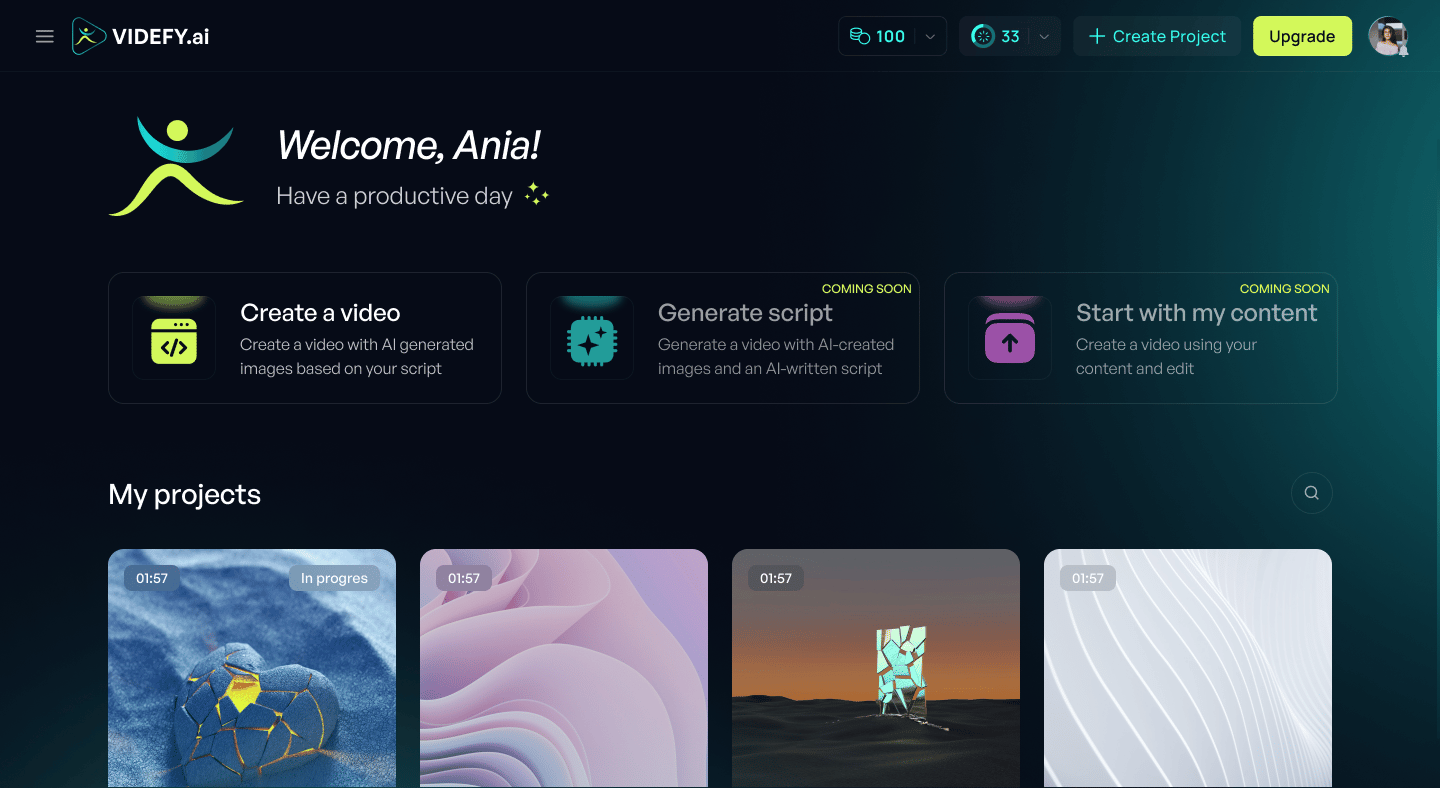
When you log in, you’ll land on the Dashboard. This is where all your projects live. From here you can:- Open existing projects
- Create a new project
- Rename, duplicate, or delete projects
2. Create Your Story
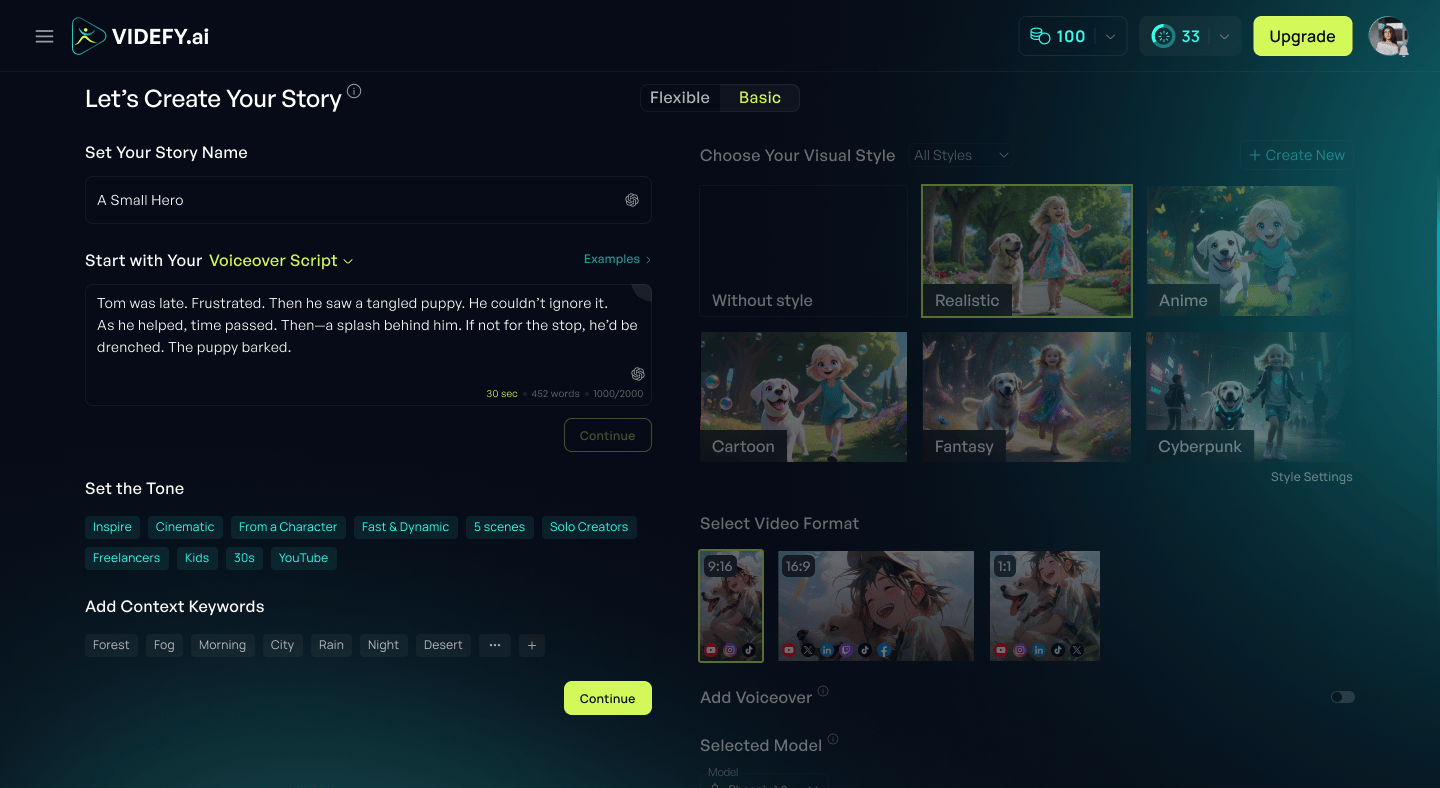
After creating a project, you’ll be taken to the Let’s Create Your Story page. This is where you define the foundation of your video. Here you’ll set:- Your script or idea
- Visual style
- Video format
- Optional AI assistance for prompts, illustrations, characters, and voiceover
2.1 Choose a Script Type
Videfy supports three ways to start your story:- Idea – Write a short idea and let Videfy generate a narration script for you.
- Voiceover script – Paste a finished narration if you already have one.
- Scene Flow – Define each scene manually for maximum control.
-1.png?fit=max&auto=format&n=uIQq_KibiQwxFrYy&q=85&s=a38620d4927e585956eb2a468b0440a4)
2.2 Add Your Voiceover Script
If you’re using a voiceover-based flow:- Write or paste your voiceover script
- Click Continue
- Select Tone & Context Keywords to guide generation
- Click Continue again
-1.png?fit=max&auto=format&n=uIQq_KibiQwxFrYy&q=85&s=7840ab6cc956a6c97339c561fe8c0007)
- Edit scene text
- Add or remove scenes
- Regenerate all scenes if you change the script
2.3 Choose a Visual Style
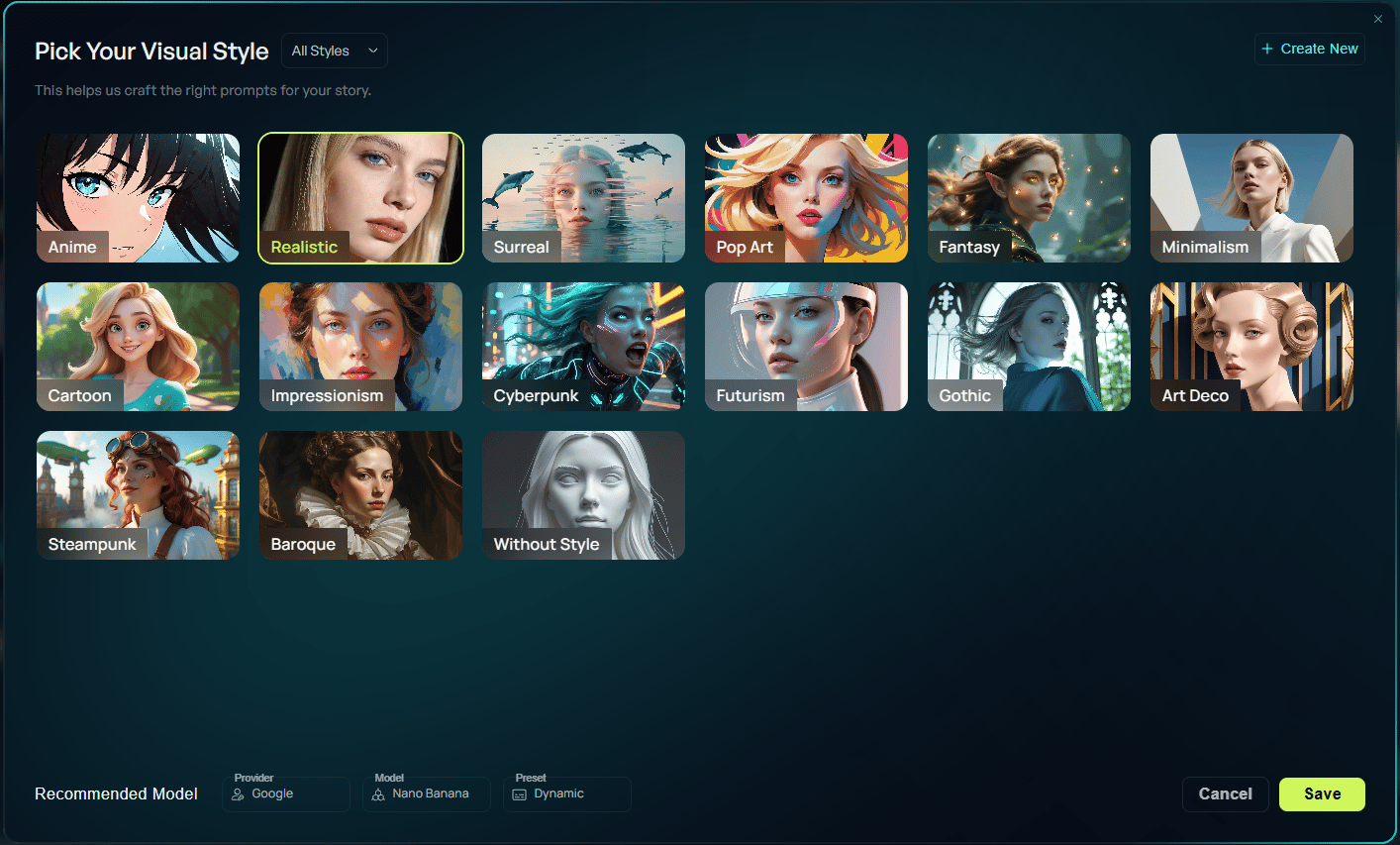
Set the overall look and feel for your video’s visuals. A Visual Style controls how Videfy generates images and videos throughout your project: the look, tone, and aesthetic applied to every scene. You can change your Visual Style at any time during the process. The Choose Your Visual Style screen displays a grid of available styles, including Realistic, Pop Art, Surreal, Fantasy, and more. To filter by category, use the dropdown menu in the top left- Choose All Styles, My Styles, or Videfy Styles. This lets you narrow the library by style type.
- Click a style to select it.
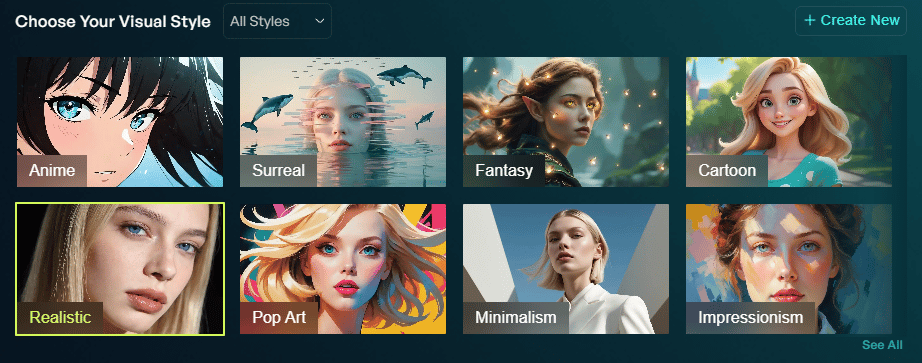
- Click a style to select it.
- Select Save to use the style.
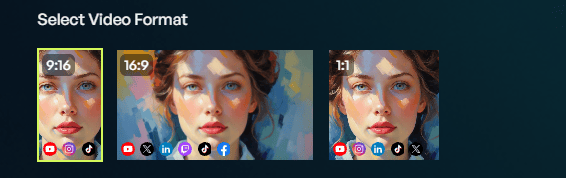
2.4 Select a Video Format
Choose your aspect ratio (9:16, 16:9, or 1:1) based on where you plan to publish. Select the aspect ratio for your video by clicking on one of three options:- 9:16 (vertical)
- 16:9 (landscape)
- 1:1 (square)
2.5 Add Voiceover
Next, choose how you want to add narration to your video.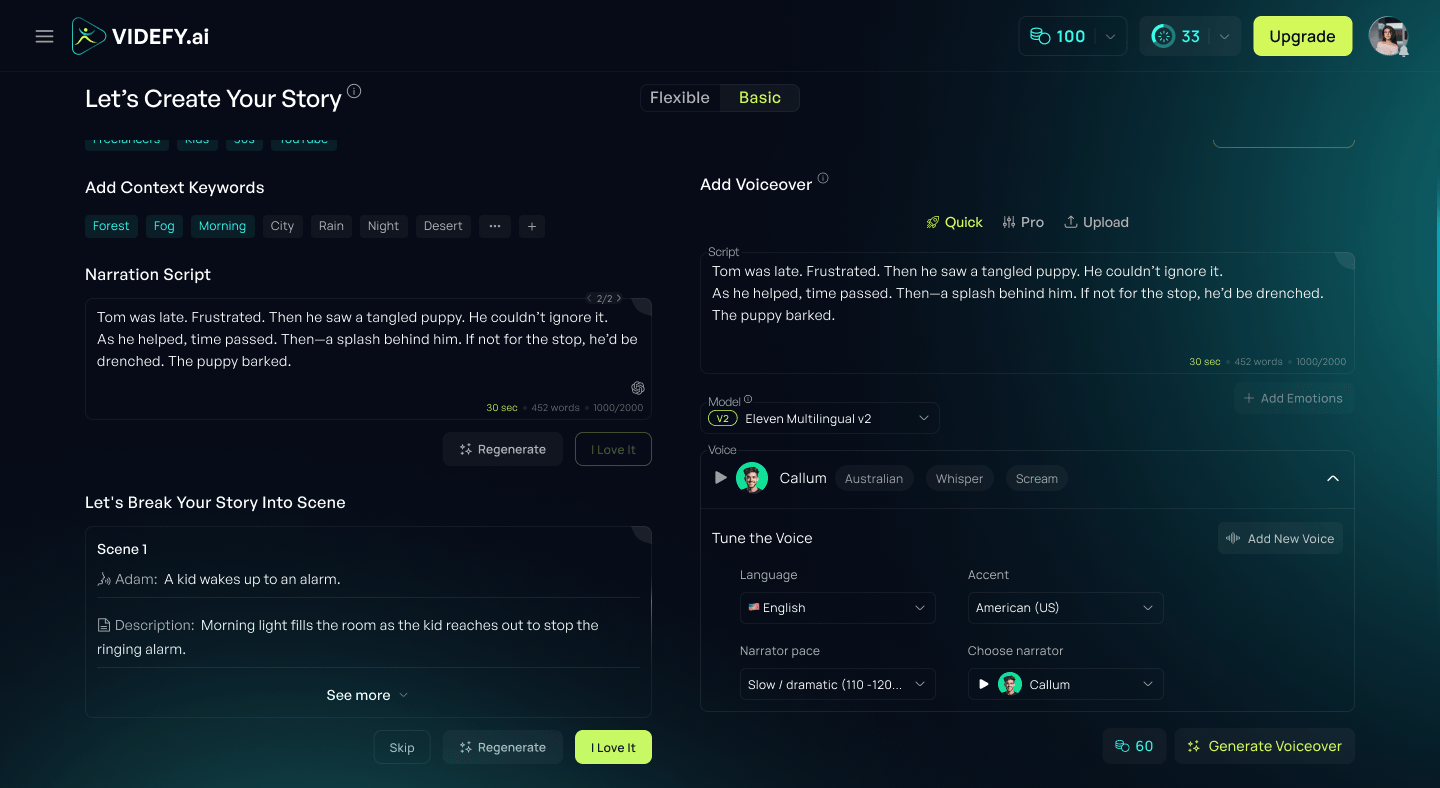
- Generate a voiceover using Videfy – Turn your narration script into AI voiceover
- Upload your own voiceover file – Use audio you’ve already recorded
- Quick – Generate narration quickly with simple voice settings
- Pro – Access more advanced voice controls
- Upload – Add your own audio file instead of generating one
2.6 Pick a Model
Select the AI model Videfy will use to generate your video’s visuals. The selected model affects how images or videos are created, including the visual style, level of detail, generation behavior, and credit cost. To choose a model:- Click the Selected Model dropdown.
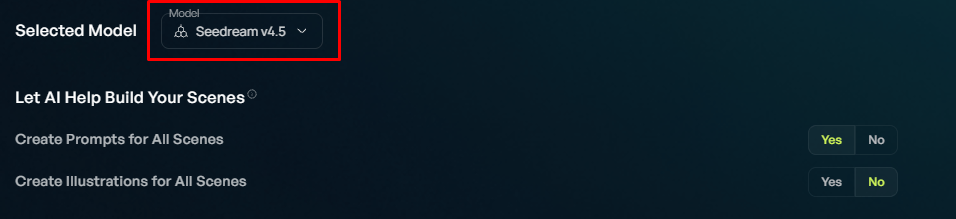
- Browse the available models in the Model Picker.
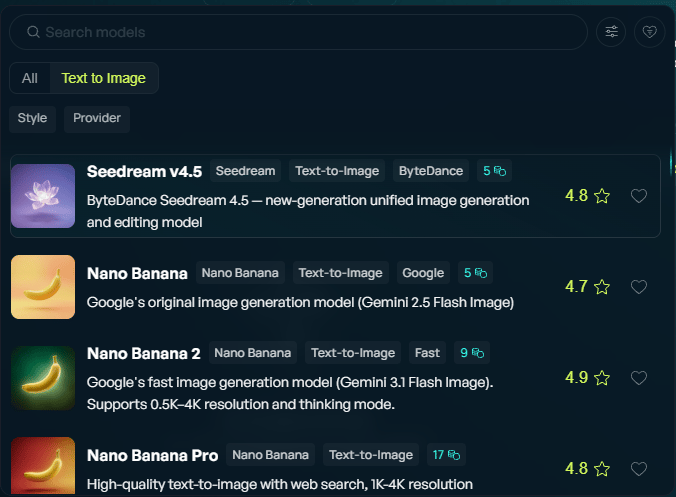
- Use search or filters to narrow the list.
- Click the model you want to use.
- Type – For example, Text to Image.
- Style – Find models that better match your visual direction.
- Provider - Browse models from specific AI providers.
You can also click a model thumbnail to open examples and preview the kind of results that model can create. Choose the model that best fits the look and output you want for your video. You can change the selected model later if you want to test a different visual direction.
2.7 Let AI Help Build Your Scenes (Optional)
Use AI to help assemble your project automatically based on your script and settings. On the Let AI Help Build Your Scenes screen, you can choose how much Videfy automates before you reach the Storyboard.- Create Prompts for All Scenes: Select Yes to automatically generate image prompts for each scene. This is required before illustrations can be generated, and also enables automatic character creation.
- Create Illustrations for All Scenes: Select Yes to automatically generate images for each scene. Requires Create Prompts to be enabled first. Image generation also requires credits.
- Keep Character Consistency: Maintains the same character appearance across all generated scene images
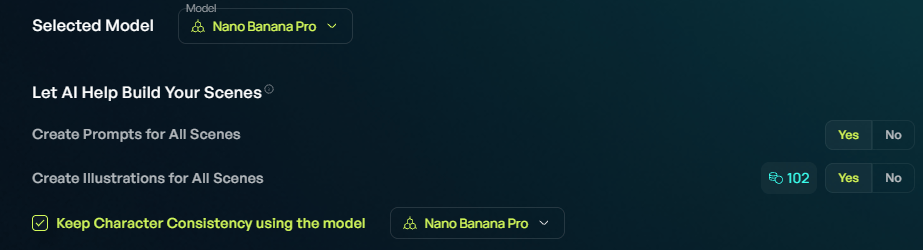
2.8 Add and Edit Characters
If Create Prompts for All Scenes is enabled, Videfy will automatically generate characters based on your script. Each character appears with a name and a detailed visual description that guides how they’re rendered across scenes.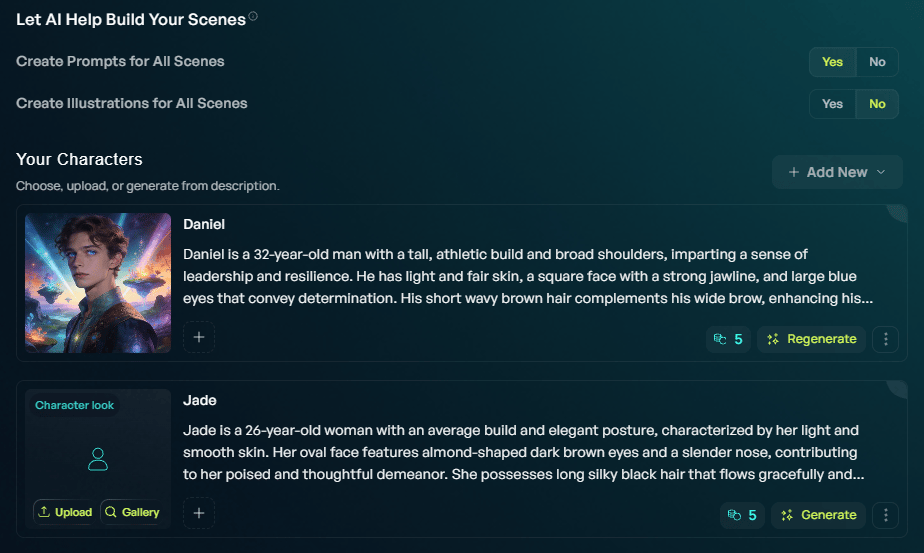
- Generate: Creates a visual image of the character. The credit cost is displayed on the button before you confirm. If you don’t like the image, you can click Regenerate to create a new option.
- Three dots menu: Opens additional options: Edit the character’s name or description, Upload a custom image for the character, or Delete the character entirely.
- Add from Gallery: Select a character from Videfy’s existing character library.
- Add Manually: Create a new character by writing your own name and description.
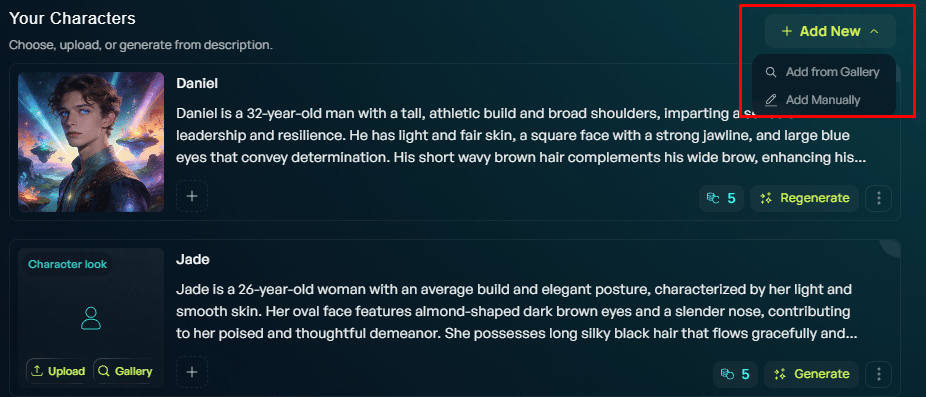
3. Storyboard
Once your story setup is complete, you’ll move to the Storyboard. This is where you generate and organize your scenes..png?fit=max&auto=format&n=uIQq_KibiQwxFrYy&q=85&s=74ba850cdcad016fe65c4bb51266f86d)
- Generate images, videos, and prompts
- Reorder scenes
- Add or remove scenes
3.1 Generation from your selected options
If you enabled AI options earlier, Videfy will automatically start generating:- Prompts
- Illustrations
- Voiceovers
3.2 Compact vs Extended View
You can switch between two storyboard views:- Compact view – Quickly review and organize scene order
- Extended view – Edit prompts, choose image or video per scene, adjust settings, and access Gallery or My Items
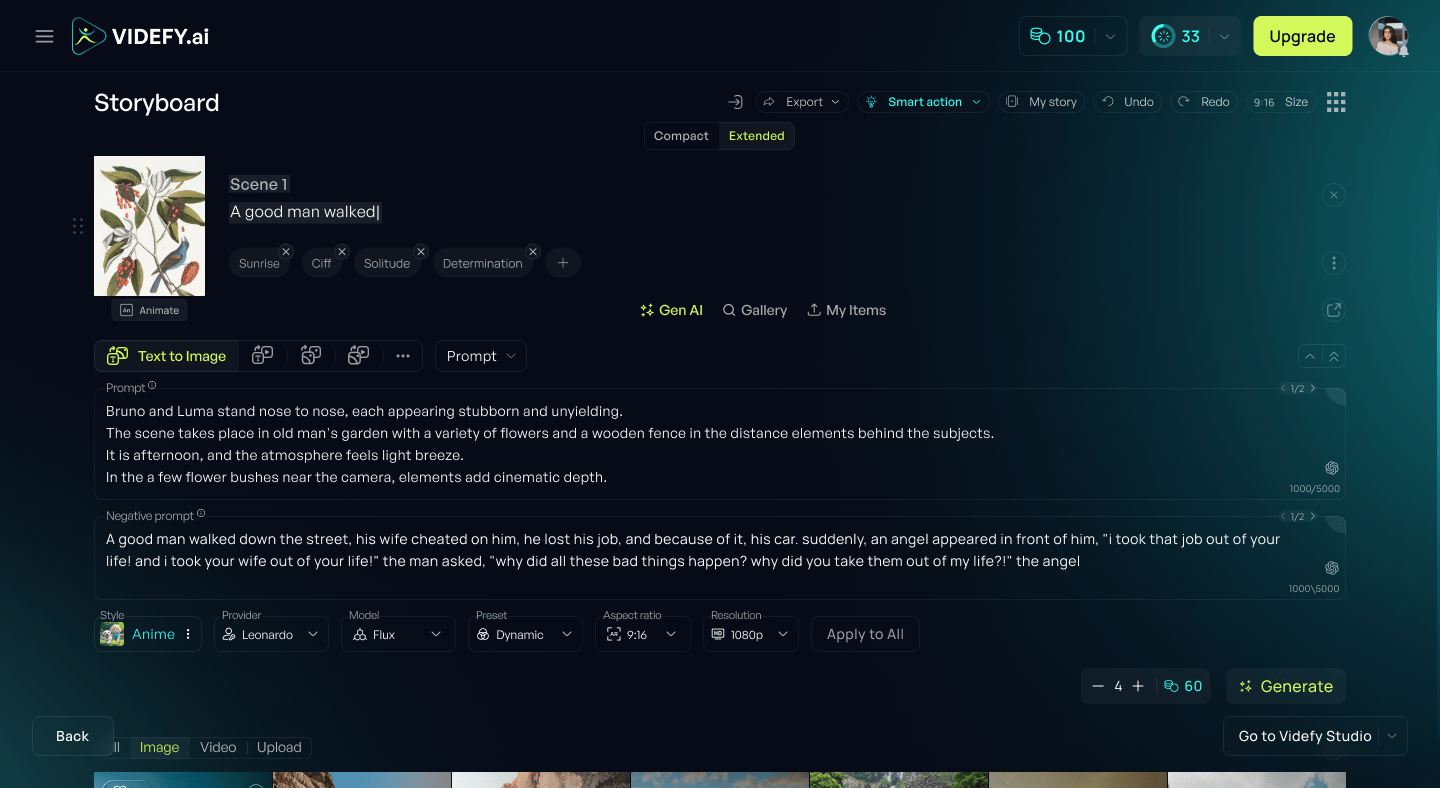
3.3 Generate Images or Videos
To generate visuals, open Extended view or click Edit Visuals to generate and edit content for each scene.3.4 Timeline (Storyboard Stage)
At the bottom of the Storyboard, the timeline lets you:- Move clips
- Remove silences
- Upload assets

4. Videfy Studio
Videfy Studio is where you polish your video before export.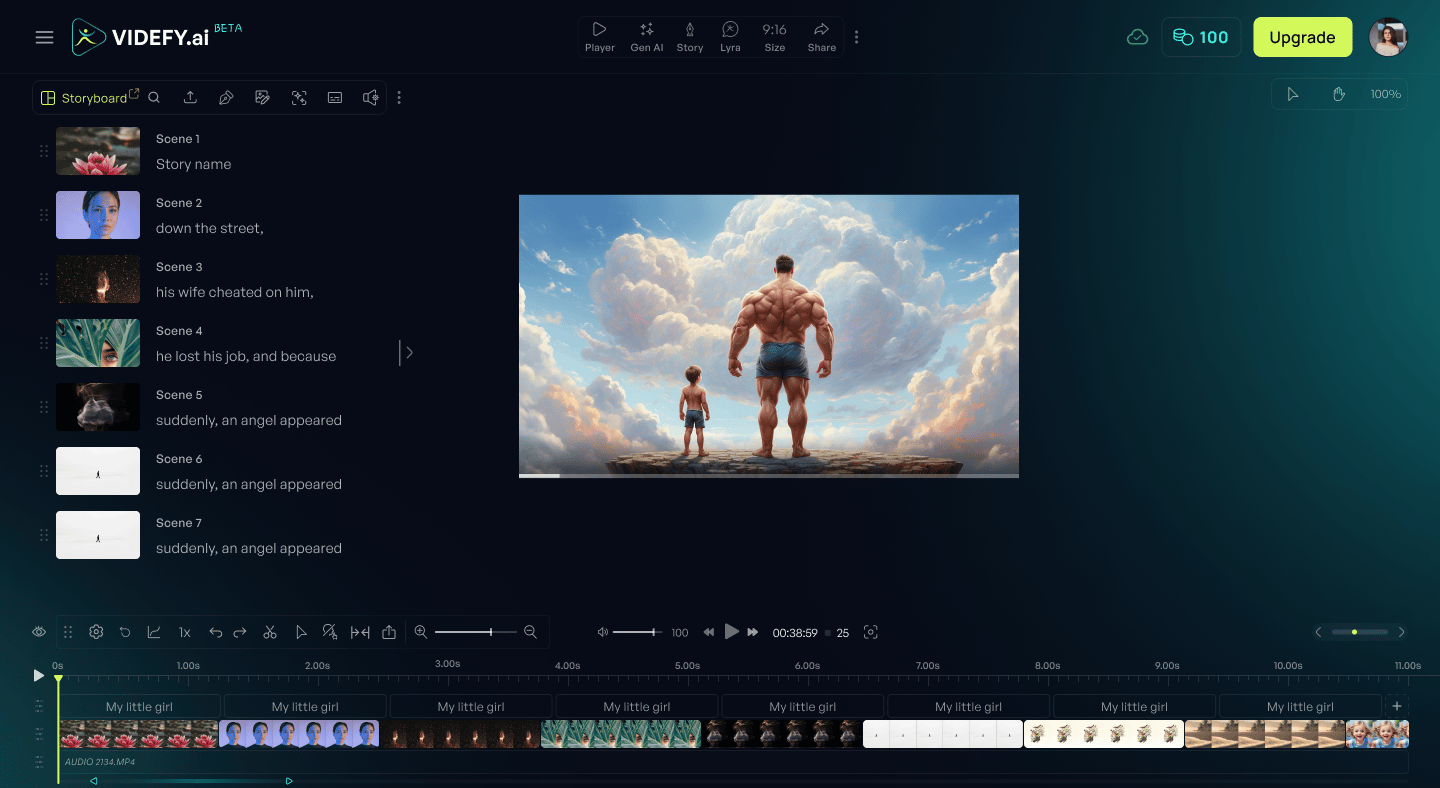
Main Areas in Videfy Studio
- Canvas – Preview your video and position overlays, visuals, and subtitles
- Storyboard panel – Manage scenes without leaving Videfy Studio
- Timeline – Edit clip duration, add effects, transitions, filters, and keyframes
- Timeline toolbar – Quick editing tools directly on the timeline
- Sidebar panel – Access overlays, subtitles, audio tools, transitions, and effects
- Top navigation panel – Generate or replace visuals, edit prompts, access Gallery and My Items, change video format, and export your video
What’s Next?
Once your video looks right:- Use Export from the top panel
- Download or publish your final video