Add and customize subtitles
The Subtitles feature in Videfy helps you automatically generate subtitles for your video content, making it easier to add text to videos for better accessibility and viewer engagement. This article will guide you through the various uses of the subtitle feature, including how to generate, edit, and delete subtitles, as well as how to customize their appearance.1. Generate subtitles
Step 1: Navigate to Videfy Studio
Open Videfy and go to the Videfy Studio page.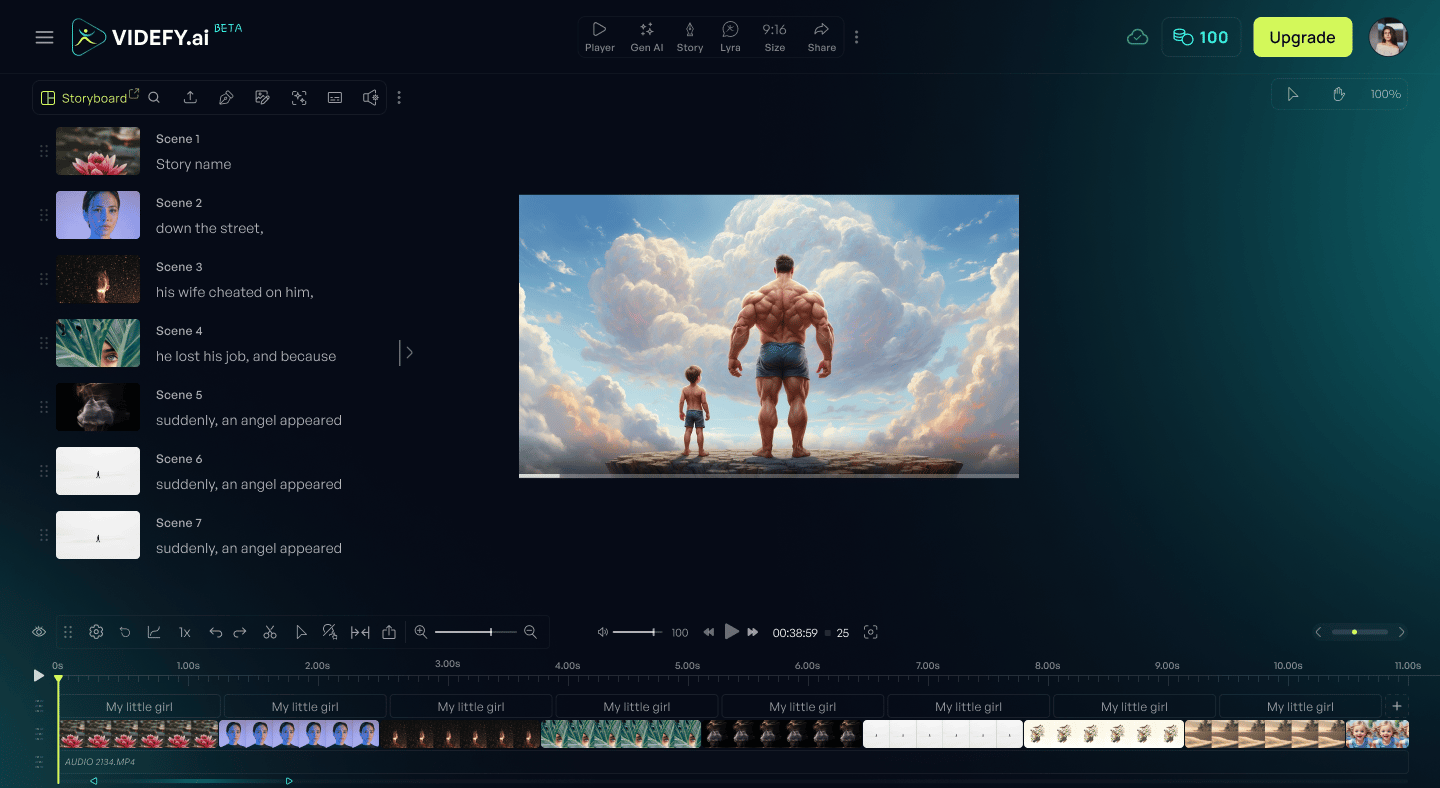
Step 2: Click on the “Subtitles” Button
In the Videfy Studio, click the “Subtitles” button to access the subtitle options.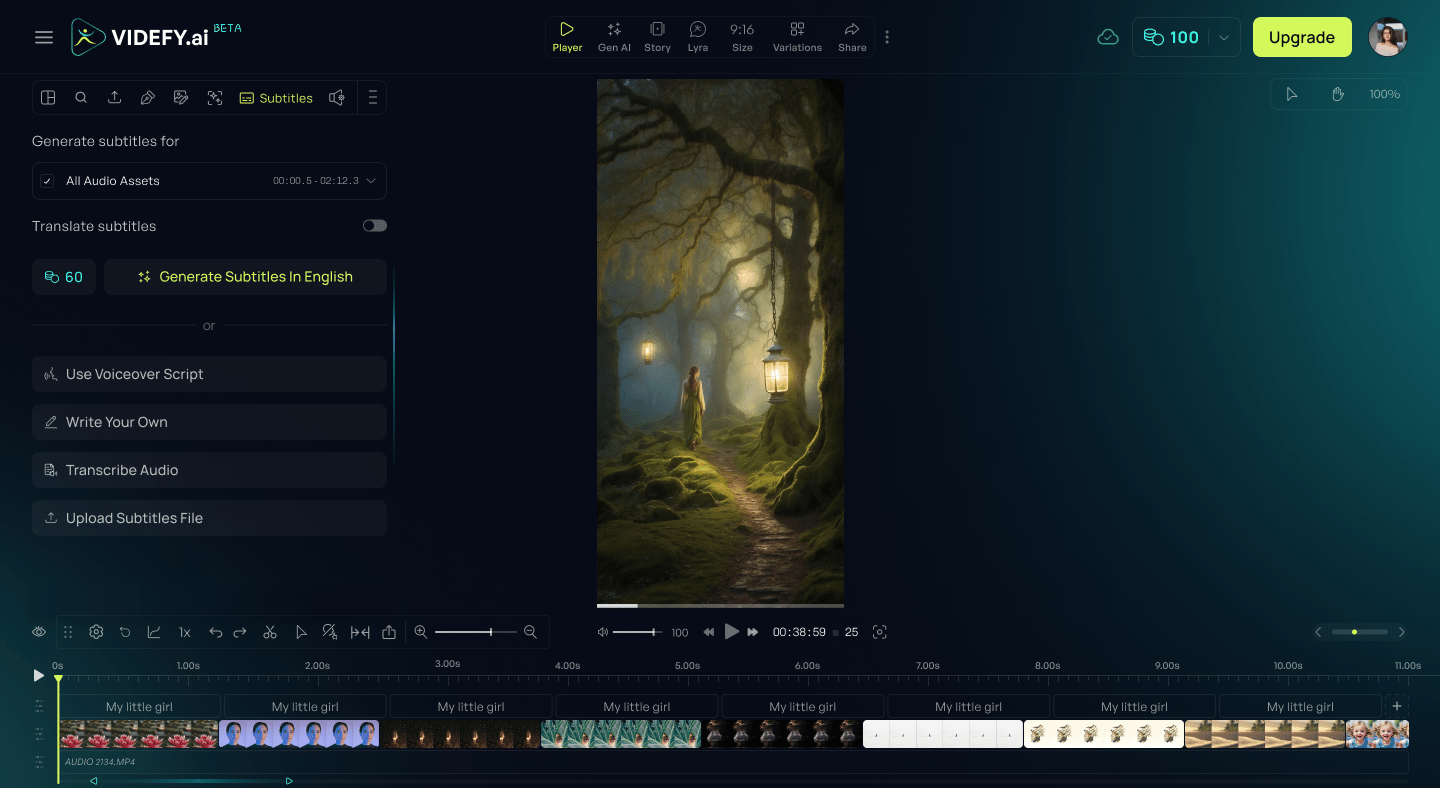
Generate Subtitles
After clicking the Subtitles button, you can generate subtitles from audio tracks, video clips with audio, your voiceover script, or write subtitles manually.Generate from Audio
- Select individual audio assets or All Audio Assets
- Review the time range of each asset
- If Translate Subtitles is on, choose the target language
- Click Generate Subtitles
Generate from Video
- Select video clips that contain audio
- Review the time range
- If Translate Subtitles is on, select the language
- Click Generate Subtitles
Use Voiceover Script
- Select Use Voiceover Script to generate subtitles based on the narration script used in your project
- Works even if Translate Subtitles is off
Write Your Own
- Select Write Your Own to manually create subtitles
- Gives full control over text, timing, and formatting
2. Edit Subtitles
Step 1: Select a Subtitle
You can select a subtitle in one of three ways:.png?fit=max&auto=format&n=ux279rwWZYkPsf0Y&q=85&s=b13cfbc90e841631cbe6fa7895039cf0)
- In the Subtitles Panel: Click on the subtitle text line in the list on the left side of the screen.
- In the Timeline: Click directly on the subtitle text box within the timeline.
- On the Canvas: Click on the subtitle text displayed in the video preview on the canvas.
Step 2: Edit the Text
After selecting the subtitle, you can modify the text, adjust its timing, or make changes to the subtitle’s appearance (like font style, size, and color) to match the style of your video.3. Hide Subtitles
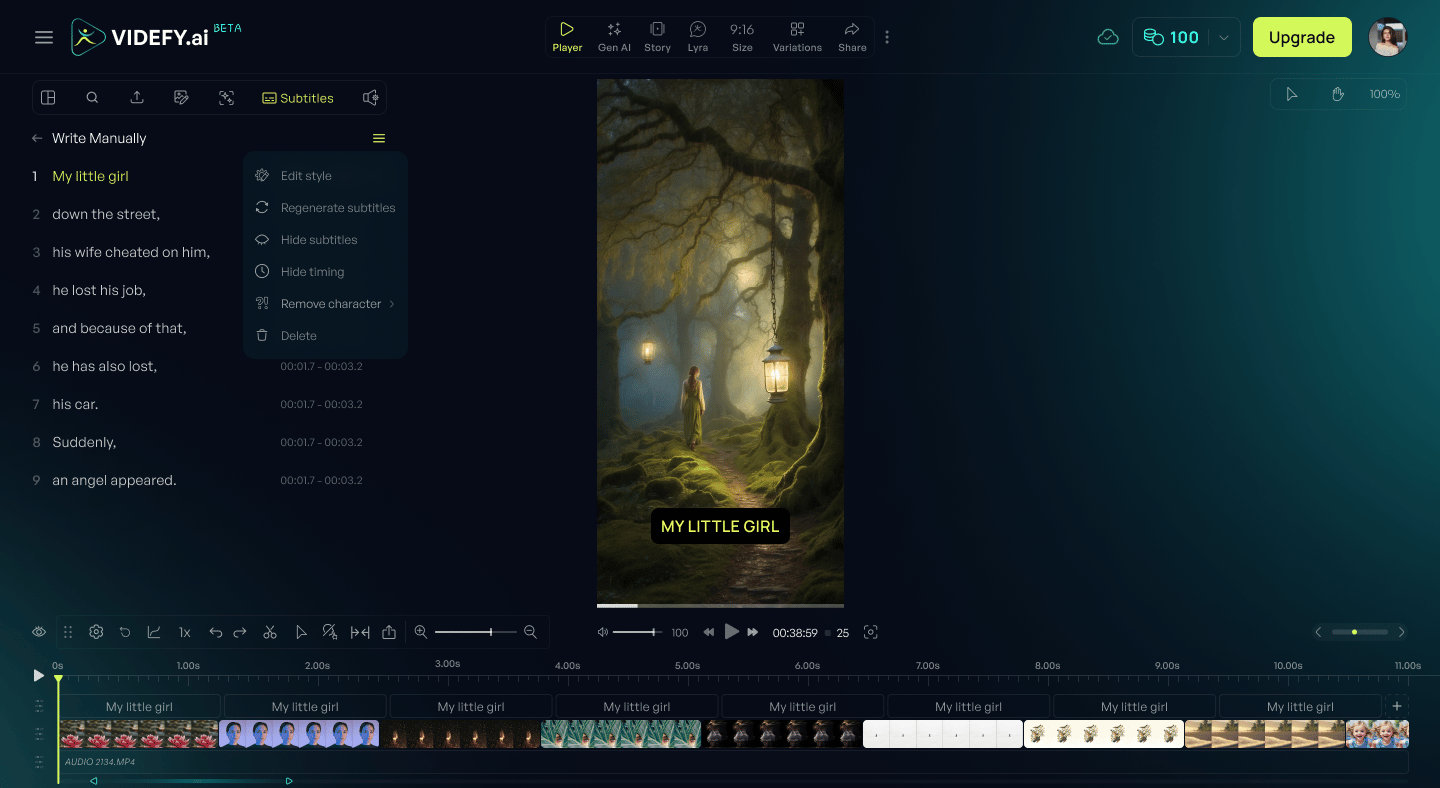
To hide subtitles from the video preview:- Click the menu icon (three horizontal lines) next to a subtitle line in the subtitle editor.
- Select Hide Subtitles from the dropdown menu.
- The subtitles no longer appear on the video canvas or in the exported video.
- In the left panel/subtitle list, hidden subtitles appear grayed out to indicate they are hidden.
- The timing information disappears from the left panel while subtitles are hidden.
- Subtitles remain in the project, so you can show them again later by selecting Show Subtitles from the same menu.
- You can still edit style, remove characters, or delete hidden subtitles via the menu.
4. Customize subtitle styles
To personalize the look of your subtitles, follow these steps:- Open Subtitle Style Options
- Click the Options Button
To access the subtitle style options, click on the three-line menu icon. This will open the additional options for subtitles. - Click on the “Edit Style” Button
After opening the menu, click the “Edit Style” button. This will open the Subtitle Styles panel, where you can view available preset styles or create a custom subtitle style..png?fit=max&auto=format&n=y5ac6Su6RzYziPGq&q=85&s=ccc372ad6e4e3a83ef7cd9a28620725d)
- You can either choose from the existing preset styles or create a completely custom style.
- Click the Options Button
- Create a Custom Style
- To create your own subtitle style, customize elements such as font type, size, color, alignment, and background. You can also adjust other settings like text spacing and shadow effects to make your subtitles stand out.
.png?fit=max&auto=format&n=Ji0pMcHrHgmGppzm&q=85&s=7eb5c1dd320e8413666530518bd98c03)
- Font style: Choose from a variety of fonts.
- Font size: Adjust the size of the subtitle text.
- Text color: Change the color of the subtitle text to match your video’s theme.
- Background color: Optionally, you can add a background behind the text for better visibility.
- Text shadow: Add shadow effects to make the text more readable against complex backgrounds.
- Capitalization: Choose from the following capitalization options:
- Uppercase: All letters in the subtitle are capitalized.
- Lowercase: All letters in the subtitle are in lowercase.
- Title Case (Capitalize Each Word): The first letter of each word is capitalized, with the rest in lowercase (commonly used in titles).
- Line Settings: Adjust how many subtitle rows are visible on the canvas. This can help manage subtitles when there are multiple lines displayed at once.
- Spacing Settings: Customize the spacing between lines and words:
- Line Height: Adjust the space between subtitle lines.
- Letter Spacing: Modify the spacing between individual characters.
- Word Spacing: Adjust the space between words to create a more readable subtitle layout.
- Save Your Custom Style Once you’ve made the desired changes to the subtitle style, click the “Save” button to save it to your subtitles. This custom style will be saved and available for use on future videos as well.
- To create your own subtitle style, customize elements such as font type, size, color, alignment, and background. You can also adjust other settings like text spacing and shadow effects to make your subtitles stand out.
5. Delete subtitles or styles
To delete a subtitle from your video, you have several options:- Using the Context Menu
Right-click on the subtitle in the timeline, and from the context menu, click “Remove” to delete the subtitle. - Using the Delete Key
Select the subtitle on the timeline, then press the Delete key on your keyboard to remove the subtitle. - Using the Backspace Key
Select the subtitle on the timeline, then press the Backspace key on your keyboard to delete the subtitle. - Delete All Subtitles Using the Context Menu
To delete all subtitles at once, click on the three-line menu icon at the top right of the subtitle panel. Then, click “Delete” from the options that appear in the context menu to remove all subtitles from your video..png?fit=max&auto=format&n=y5ac6Su6RzYziPGq&q=85&s=0049f45e5cfcae9c4b79bbe2472507ec)
Delete a Subtitle Style
To delete a custom subtitle style, go to the “My Styles” section, hover over the style you want to remove, and click “Delete.”.png?fit=max&auto=format&n=vjFlMoIfsn0GAXQi&q=85&s=c9198e725aa3de9e5357a81bf23406d7)
6. Additional Features
Adjust Subtitle Timing
- To adjust the timing of a subtitle, click and drag the subtitle box in the timeline. This allows you to change when a subtitle appears or disappears from the video.
Merge Subtitles
- To merge two or more subtitles, select them in the timeline and use the merge option to combine them into a single subtitle entry.