
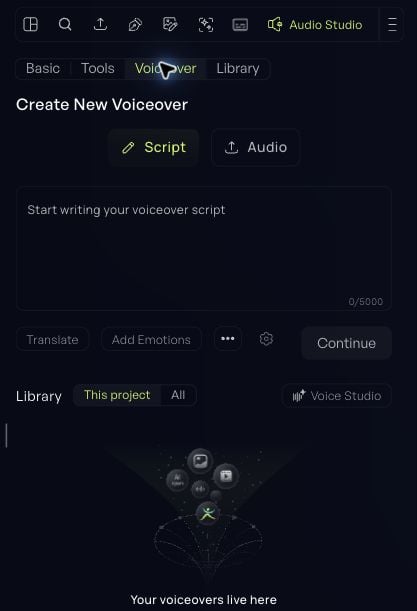
In Videfy Studio, open Audio Studio → Voiceover. The voiceover flow is also available during story creation. Audio 1 Create a voiceover from a script or audio

Create from a script

  1. Choose Script.
  2. Enter the words you want spoken.
  3. Review the wording before continuing.
  4. Choose Continue to identify the speakers.
  5. Review the detected speakers and assign the voices.
  6. Check the settings and displayed cost, then generate the voiceover.
For a single speaker, start with one narrator. For dialogue, check that each speaker has the intended voice. Listen to names, numbers, pauses, and the final sentence. A script that reads well may need a small adjustment when spoken.

Use your own audio

Choose Audio and add the recording you want to use. Review it before adding it to the story. If you transcribe or translate the recording, check the resulting words before generating new speech. Use This project to find voiceovers associated with the current project, or All to browse the wider library available in the current context.

Refine individual lines

In Advanced Settings, work with the relevant speaker and line. Generate and listen to a single line when that is all you need to change. Use the approval control for lines you want to keep. Review the remaining-line count before running a batch. After changing individual lines, listen to the assembled voiceover. Make sure the joins, voice assignments, and timing still sound natural. Check the cost displayed for each generation. Regenerating a line is different from simply playing an existing result.