
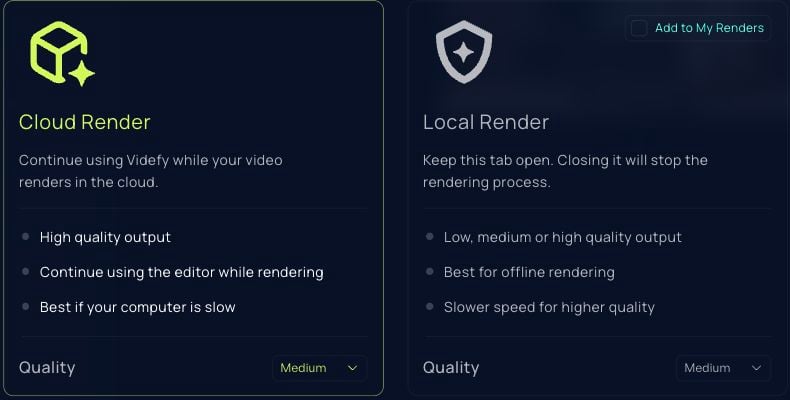
Watch the complete timeline before exporting. Check scene order, audio, subtitles, and the final frame. Open Export → Render to reach Create Your Video. Export Choose between Cloud Render and Local Render

Choose where to render

OptionWhat to expect
Local RenderYour device does the work. Keep the tab open; closing or refreshing it stops the render.
Cloud RenderVidefy processes the render in the cloud. You can continue using the editor while it runs.
Choose the quality available for your account and review any displayed cost. For local rendering, Add to My Renders controls whether you also keep a copy in the render library. Choose Run when the settings are right.

Find the finished video

Open Export → My Renders or Your Renders in the export window to find cloud renders and locally rendered copies you chose to add there. Use the available preview and download controls for the completed render. A completed render and a downloaded file are two different checkpoints: confirm the file has reached your computer. If a render fails and a Retry action is available, review the error before trying again.

If Export is unavailable

An empty timeline cannot be rendered. Add the content you want in the video, then check again. Also review any plan or duration limit shown by the app.

If rendering or downloading fails

Keep the project URL, approximate time, render method, quality setting, and exact error message. Check the render entry before starting another job. For a local render, leave the tab open and keep the device awake. If the problem repeats, contact the team with those details.

Export assets separately

Export → Download Story Assets is for project material rather than a single finished video. Review the available asset selections before downloading. The Export menu also includes Videfy extension for Adobe Premiere Pro. Use that workflow’s instructions if you plan to continue editing there. After downloading, open the video and check its picture, sound, subtitles, and duration before sharing it.